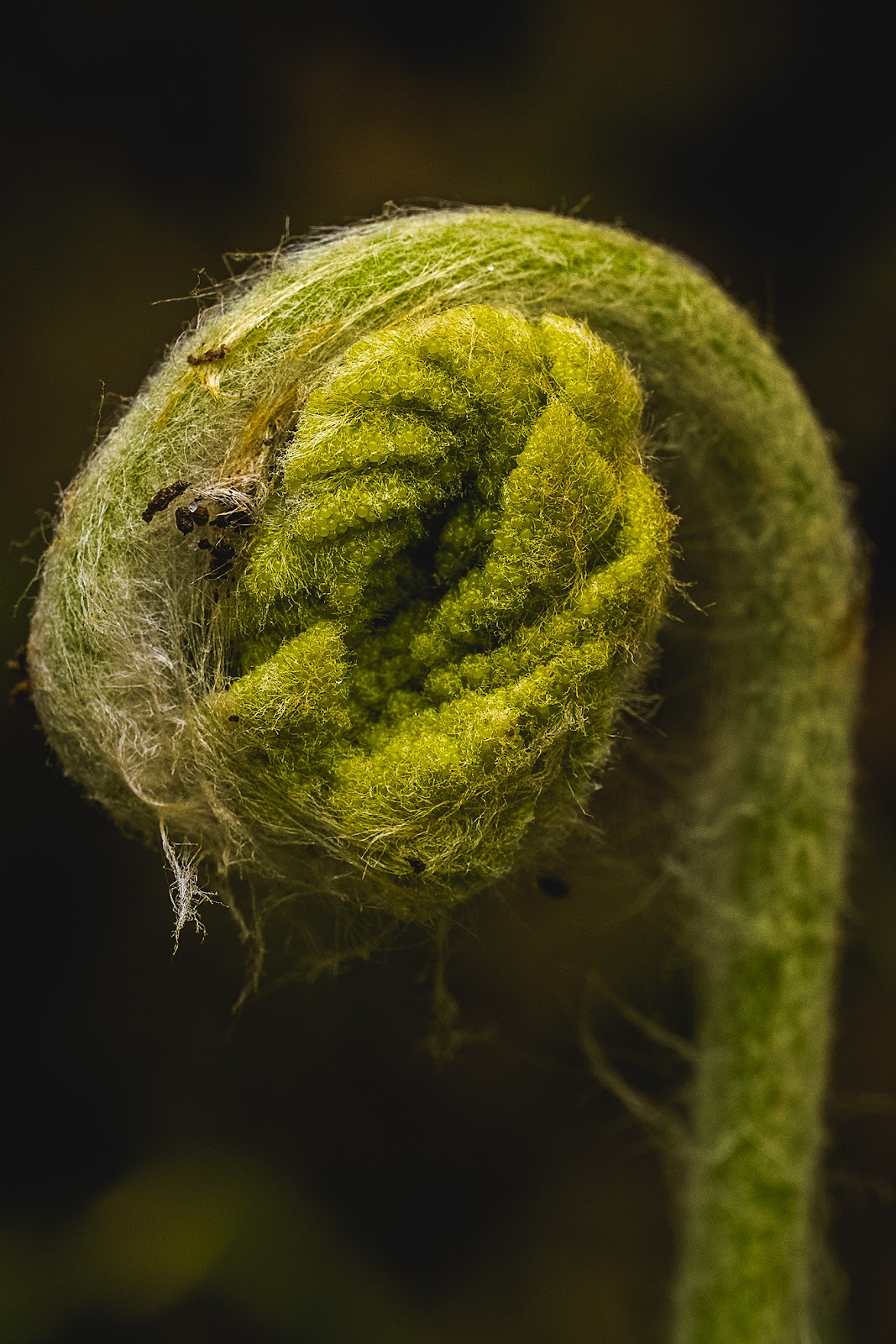
Lightroom presets are one-click starting points for editing – they apply a predefined combination of exposure, color, tone curve, HSL, and effects settings to your image instantly. For nature photographers processing hundreds of RAW files from a single outing, a well-chosen preset reduces the time spent on repetitive basic adjustments and creates visual consistency across a portfolio or collection. But presets are a starting point, never a final step. Understanding how to evaluate, apply, and fine-tune presets is what separates photographers who use them effectively from those who produce inconsistently processed work.
This guide covers the best free and paid Lightroom presets specifically designed for nature photography in 2026, how to integrate them into an efficient workflow, and the essential Lightroom tools that no preset replaces.
What Makes a Great Nature Photography Preset?
Not all presets are created equal. Many popular “cinematic” or “moody” presets are designed for portrait or street photography and actively undermine nature images – adding orange skin tones to leaves, crushing shadow detail in dark forest floors, or applying film grain that obscures feather and fur texture. A great nature photography preset does the following:
- Respects natural colors. Greens remain green (not teal), browns stay warm (not gray), skies deepen without going artificial. The HSL adjustments in a quality nature preset are subtle calibrations, not dramatic color shifts.
- Preserves highlight and shadow detail. Nature scenes often have complex dynamic range. A good preset doesn’t clip highlights or crush shadows – it sets a starting tone curve that retains information across the full tonal range.
- Scales across lighting conditions. A preset that works perfectly for golden hour landscapes should require only minor adjustments for overcast forest shots. Presets that only work in one specific lighting scenario force you to maintain too many variations.
- Is transparent about what it changes. Quality preset creators document which settings they modify. This lets you understand the adjustments and confidently customize them rather than treating the preset as a black box.
Evaluate any preset on three test images: a harsh midday landscape, a golden hour wildlife shot, and a shaded forest interior. A preset that handles all three with only minor per-image adjustments is a keeper. One that looks great on one and breaks the others is a specialty tool, not a workflow staple.
Best Free Lightroom Presets for Nature Photography
1. Adobe Standard Profile (Built-In) – Start Here
Before evaluating third-party presets, understand Adobe Standard – the default camera profile that Lightroom applies to every RAW file. This is not a preset but a color profile that determines how the raw sensor data is initially interpreted. Adobe Standard is accurate and neutral; Camera Vivid, Camera Landscape, and Camera Portrait profiles emulate your camera’s in-camera JPEG processing styles with boosted saturation and contrast.
For nature photography, Camera Landscape (if available for your camera) or Camera Vivid often provides a more immediately pleasing starting point than Adobe Standard – particularly for green foliage and blue skies. Test these profiles on your own camera’s RAW files before building any preset workflow on top of them, as they affect all subsequent color adjustments.
2. Preset Hub Nature Pack (Free)
Preset Hub offers a free nature photography collection that covers the most common scenarios: landscape, wildlife, waterfall, and forest interior. The presets use conservative adjustments that work as genuine starting points rather than dramatic stylistic effects – exactly what a practical nature photography workflow requires. The free tier includes 10 presets covering warm landscape, neutral landscape, wildlife action, and forest tones.
Best for: Photographers building their first preset workflow who want something usable without committing to a paid pack. The nature pack applies cleanly to both Sony and Nikon RAW files without color cast issues.
3. VSCO C1 Film Presets (Free Tier)
VSCO’s mobile app reputation doesn’t reflect the quality of their Lightroom desktop presets. The free tier of VSCO’s C1 series (a clean, slightly desaturated film emulation) applies well to nature photography – particularly for photographers who prefer a more muted, editorial aesthetic rather than heavily saturated output. The C1 preset reduces overall saturation approximately 10–15%, lifts shadows gently, and applies a mild S-curve that adds contrast without clipping. It works particularly well for wildlife and photojournalistic nature work.
Best Paid Lightroom Presets for Nature Photography
1. LUTS & Presets by Ben Heine – “Wild Nature” Collection
Ben Heine’s Wild Nature collection is purpose-built for wildlife and landscape photography. Unlike many “nature” presets that are rebranded portrait or travel packs, these were developed specifically testing on bird, mammal, and landscape RAW files. The collection includes 25 presets covering golden hour wildlife, overcast forest, dramatic storm landscapes, misty morning, and night wildlife scenarios. Each preset has an accompanying “strong” and “subtle” variant, giving you control over the intensity without manual adjustment.
Best for: Wildlife photographers who want a single pack that handles their full range of shooting conditions. The animal-specific presets are particularly strong on feather and fur texture rendition.
2. Mastin Labs Film Presets – Fuji, Kodak, Ilford Series
Mastin Labs produces the most accurate film emulation presets available for Lightroom, and their Fuji and Kodak series translate beautifully to nature photography for photographers who prefer a film-influenced aesthetic. Fuji Provia 100F renders landscape colors with exceptional accuracy – the greens are genuine green rather than oversaturated emerald, and the blues retain cloud detail rather than burning to white. Kodak Portra 400 works well for wildlife with warm skin/fur tones and natural shadow detail.
Mastin presets require camera-profile installation (included with purchase) for accurate results – they don’t work as simple Develop presets without the profile foundation. This is a feature, not a limitation: the result is far more accurate film emulation than profile-free approaches.
Best for: Photographers with a film background who want digital files that retain a film character, or those whose clients expect a consistent, recognizable aesthetic.
3. The Preset Factory – “Landscape Master” Collection
The Landscape Master collection from The Preset Factory covers 40 presets across dramatic landscape, sunrise/sunset, waterfall, coastal, and mountain scenarios. The highlights are the golden hour and blue hour presets, which handle the extreme dynamic range of those shooting windows with notably better results than most competitors. The presets include adjustment brush presets for targeted sky and foreground modifications – more complete than single-click alternatives.
Best for: Landscape specialists who need consistent output across highly varied lighting conditions. The blue hour and storm presets are particularly strong for dramatic landscape work.
4. Sleeklens “Through the Woods” Nature Photography Bundle
Sleeklens’ “Through the Woods” bundle is one of the most comprehensive nature photography preset packages available: 68 presets covering forest, wildlife, landscape, macro, and astrophotography scenarios, plus 40 adjustment brush presets for local targeted corrections. The workflow brushes – for brightening eyes in wildlife portraits, recovering blown highlights in specific sky areas, and adding clarity selectively to foreground textures – extend the utility well beyond the one-click preset functionality.
Best for: Nature photographers who want a single purchase that covers every scenario they’ll encounter, with the brush workflow tools to make targeted local adjustments efficiently.
How to Use Presets Efficiently in Your Workflow
The photographers who get the most from presets are not those who buy the most of them – they’re those who build disciplined workflows around a small number of carefully chosen ones. A practical approach:
- Select your base preset first. Apply a consistent starting preset to all images from a session before evaluating individual images. This gives you a consistent baseline across the selection and makes variations (the one image that needs more exposure, the one with a color cast) immediately apparent.
- Use Auto Settings as a sanity check. Lightroom’s Auto button applies AI-driven basic adjustments. It’s rarely the final look, but comparing your preset result to Auto reveals cases where the preset is significantly over- or under-correcting for a specific image.
- Build a small personal preset library. After customizing a preset for a specific shooting condition – your standard golden hour bird setup, your overcast forest adjustment – save that as your own preset variant. Over time you’ll build a library of personalized presets that require less per-image adjustment than off-the-shelf packs.
- Sync adjustments across similar images. After dialing in one image, use Lightroom’s Sync Settings to apply those adjustments to multiple selected images. This is faster than applying the preset and adjusting each image individually.
Essential Lightroom Tools Beyond Presets
No preset replaces the targeted local adjustment tools that handle the unique characteristics of nature photography scenes:
- Masking (formerly Local Adjustments): Lightroom’s AI masking – Select Sky, Select Subject, Select Background – allows targeted adjustments to the sky separately from the foreground, or to an animal separately from the background. This is the most powerful recent addition to Lightroom’s nature photography toolkit. Use it after applying a preset to fine-tune tonal and color differences between scene elements.
- Denoise AI: Lightroom’s built-in AI noise reduction (introduced in 2023) produces results that rival dedicated noise reduction tools for most nature photography use cases. Apply it to high-ISO wildlife files before fine-tuning other adjustments – noise reduction affects perceived sharpness and color, so it should precede other corrections.
- Texture and Clarity: Texture (mid-frequency detail enhancement) works differently from Clarity (local contrast boost). For wildlife, texture at +15 to +25 enhances feather and fur detail without the halo artifacts that high Clarity creates. For landscapes, Clarity works well on rock formations and trees; reduce it on soft subjects like mist or water.
- HSL / Color Mixer: The most powerful color control in Lightroom. Adjusting the specific Hue, Saturation, and Luminance of individual color ranges – making greens more yellow, deepening sky blues, warming autumn oranges without affecting reds – produces results that no preset can match because these adjustments are scene-specific.
Lightroom Alternatives Worth Considering
Adobe Lightroom’s subscription model has driven many photographers to evaluate alternatives. Two stand out for nature photography:
- Skylum Luminar Neo – AI-driven photo editing with exceptional automated sky replacement, AI structure enhancement, and a simpler interface than Lightroom. Its Relight AI tool handles complex lighting situations effectively. Not a direct Lightroom replacement for library management, but strong as a finishing tool for select images.
- Capture One 23 (boxed version) – The professional standard for color-critical work, with notably better color rendering than Lightroom on some camera RAW files and superior tethered capture for studio and macro work. Available as a perpetual license (boxed version) as an alternative to subscription. The workflow differs significantly from Lightroom – expect a learning curve before you’re working efficiently.
Neither alternative fully replaces Lightroom for high-volume nature photography library management, but both offer specific capabilities that supplement a Lightroom-primary workflow.
Frequently Asked Questions
Are Lightroom presets worth buying for nature photography?
Yes – for photographers who process high volumes of nature images, a quality preset pack pays for itself in time saved and consistency gained. The key is selecting presets designed specifically for nature photography (not repurposed portrait or travel presets) and building a disciplined workflow around a small number of carefully chosen ones. Avoid collecting dozens of preset packs; a small library of well-understood presets produces better results than a large library of presets you apply randomly.
Can I use Lightroom presets on RAW files?
Yes – Lightroom presets work on both RAW and JPEG files. They apply the same Develop module adjustments regardless of file format. However, presets produce better results on RAW files because RAW’s greater dynamic range and tonal latitude means the adjustments have more data to work with. A preset that clips highlights on a JPEG may handle the same scene perfectly on a RAW file because the additional highlight data was preserved in the RAW capture.
What is the best free Lightroom preset for landscape photography?
The Camera Landscape profile (built into Lightroom for supported cameras) is often the best starting point – it applies your camera manufacturer’s landscape color rendering without any cost. Among third-party free presets, Preset Hub’s Nature Pack provides the most practically useful starting points for landscape photography, with presets that work across multiple lighting conditions without requiring significant per-image adjustment.
Does Lightroom work on both Mac and Windows?
Yes – Adobe Lightroom Classic and Lightroom (cloud-based) are both available for Mac and Windows. Lightroom Classic is the desktop-primary version with the full catalog system; Lightroom (cloud) syncs across desktop, mobile, and web. For high-volume nature photography library management, Lightroom Classic is the more capable option. Presets purchased for either version are compatible with the other – they use the same Develop module settings.
How do I install Lightroom presets?
In Lightroom Classic: open the Develop module, right-click anywhere in the Presets panel on the left, select “Import Presets,” and navigate to your downloaded .xmp or .lrtemplate preset files. In Lightroom (cloud/mobile): tap the Edit icon, tap Presets, tap the three-dot menu, and select Import Presets. XMP presets work in both versions; older .lrtemplate files only work in Classic. Most modern preset packs include XMP format for maximum compatibility.
Browse more nature photography tutorials, gear reviews, and field tips.
Download our guide: exposure, ISO, and aperture strategies for every light condition and terrain.
We respect your inbox. One guide, occasional tips, unsubscribe anytime.
Related Guides
 Best Polarizing Filters for Nature Photography (2026): 6 CPL Filters Compared
 Best Camera Settings for Macro Photography: How to Photograph Flowers and Insects Up Close
 Best Large Format Photo Printers (2026): 17-Inch to 24-Inch Wide Format Reviews